Fake notification videos: how to film sales notifs honestly
Updated · By Larpea
A fake notification video shows sales alerts on a lock screen that you scripted. Write them in a simulator from our fake notification apps category, freeze the clock, set a delay before the first one, then screen-record or film with a second phone and label the clip a mockup. Never add a phone number or a real store brand.
What this format is, and why it sells in a video
A sales-notification clip shows a phone lock screen where orders and payments keep landing, one after another. It is one of the most copied formats in the fake notification apps category: 13 of the 125 larp tools we checked in October 2026 sit in that category or list notifications as a second one. The appeal is simple. The sound, the stack and the rising total tell a story in two seconds, and nobody has to read anything.
This guide is the practical side: how to script it, how to capture it cleanly, and how to say what it is. It assumes you use My Larp Notifs, because the settings below are the ones that app really has. A video that exists for a joke, a launch skit or a product demo is a legitimate use. A video that stands in for evidence of a business is not, and we say so more than once.
The method: seven steps from script to post
These steps take about ten minutes the first time. Every setting named is one you will find in the app, which is why the order matters: the script drives the timing, and the timing drives how you set up the phone.
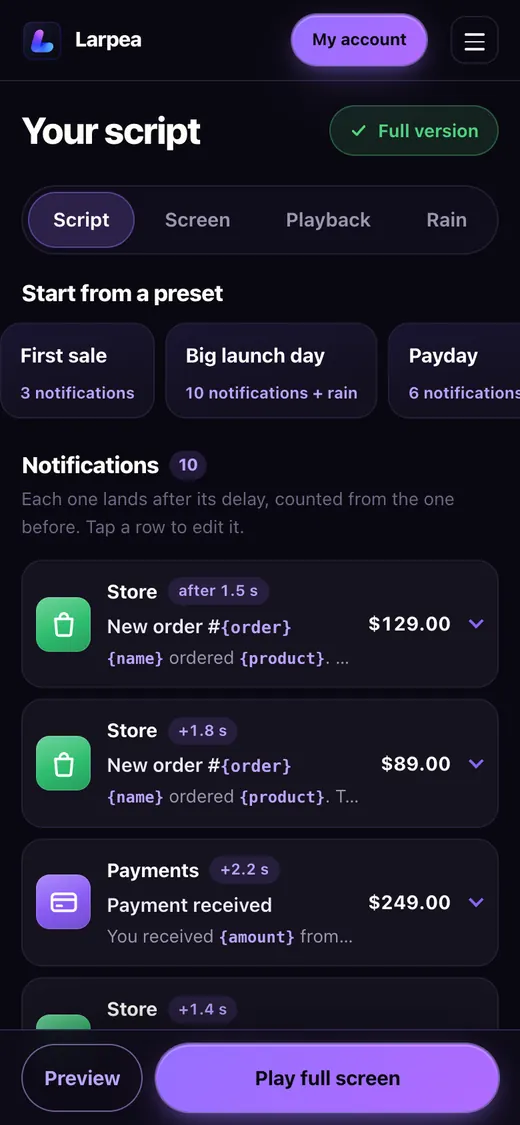
- Write the script first. Open the Script tab of My Larp Notifs and start from a preset: First sale, Big launch day or Payday. Each notification has a delay counted from the one before it, so you decide the rhythm. Use {name}, {amount}, {product} and {order} in a line and the app fills them in. The free version plays the first 3 notifications; the rest of your script stays saved.
- Pick the screen. In the Screen tab choose Dark or Light, a wallpaper (your own image is resized on your device and never uploaded), and the clock. Real time is fine for a one-off take; Custom time freezes the clock so retakes match. Leave the small mockup label on. In the free version it cannot be removed, and we recommend keeping it in the paid one too.
- Set the timing. In the Playback tab, set the delay before the first notification: right away, 3, 5, 10, 15 or 30 seconds, or 1 minute. Pick 10 seconds if you film with a second phone, so you have time to prop it up and press record. Choose Stop at the end for a clean cut, or Loop if you need a long background take.
- Put it full screen. In Safari on an iPhone, tap Share, then Add to Home Screen, then Add. The full version opens from that icon straight into play mode with no browser bar, so no address field shows in the frame. The free version plays in the browser tab.
- Prepare the phone you film with. Turn on a Focus such as Do Not Disturb in Settings so a real message cannot land on top of your fake ones. Set the screen brightness by hand, around three quarters, and switch off Auto-Brightness (Settings, Accessibility, Display & Text Size) so the exposure does not pump halfway through the take. Wipe the glass.
- Capture it one of two ways. Option A: screen recording. Add Screen Recording to Control Center (Settings, Control Center), start it, then open the app from the home screen and tap Start. You get a pixel-clean clip. Option B: film the screen with a second phone propped at a slight angle, which shows a real device in a real hand. Double-tap an empty spot (or press Esc) to open the controls between takes.
- Label it before you post. Write “mockup” or “simulated notifications” in the on-screen text or the first line of the caption, and keep the label the app draws. A clip with the label is a skit; the same clip cropped and captioned “my store at 9am” is a different thing, and the part of this guide on scams below is why.
What the screens look like
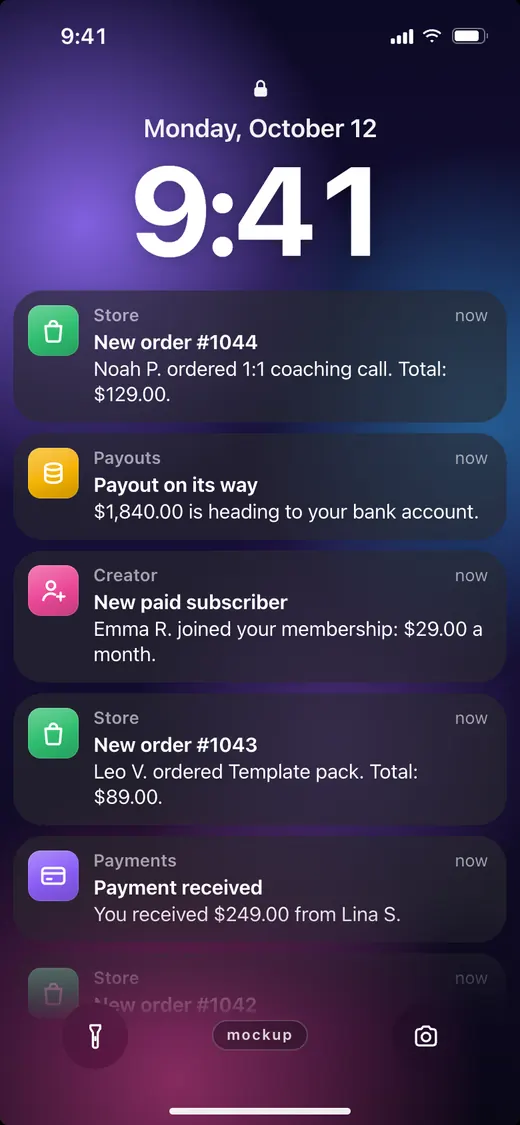
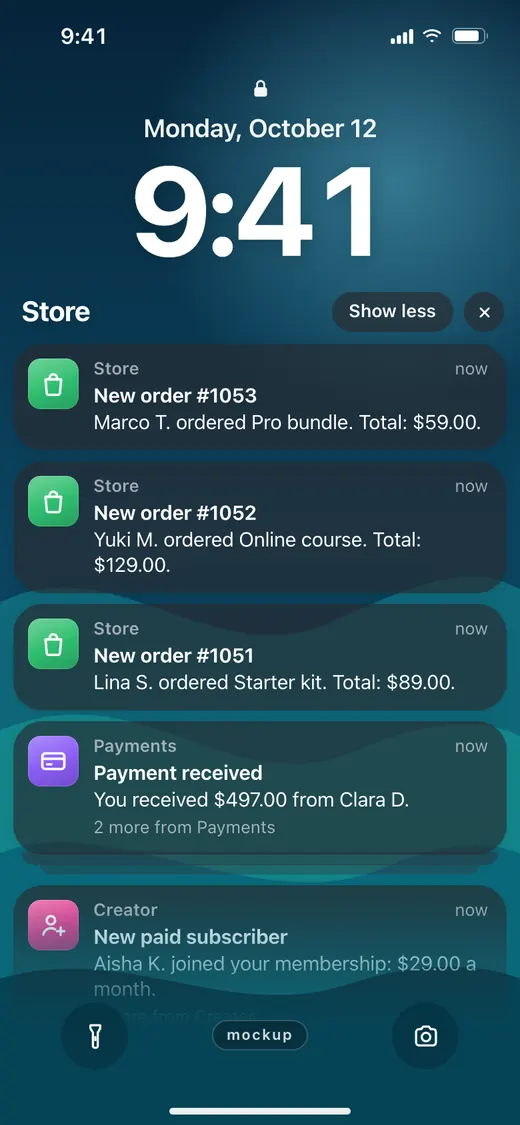
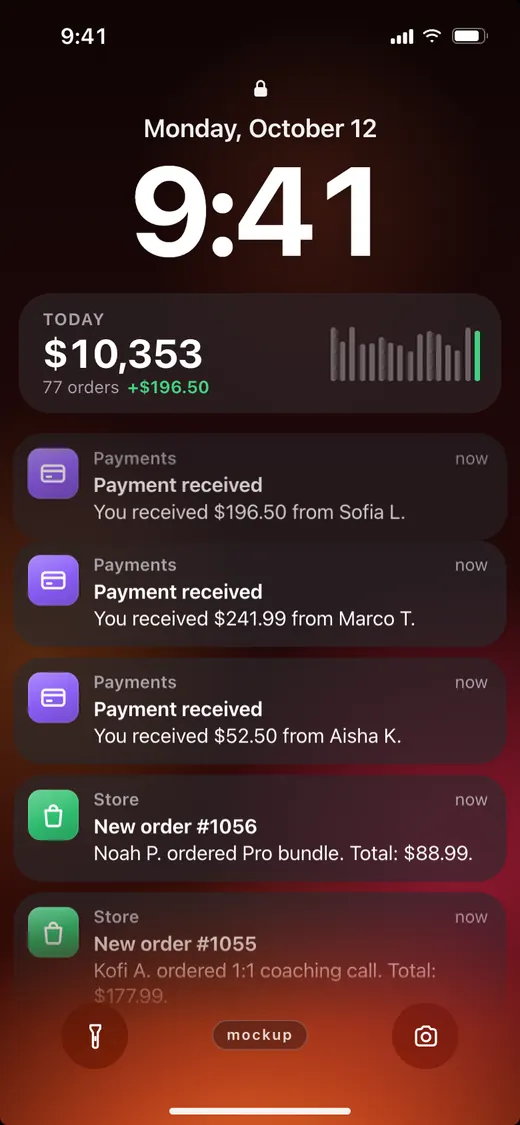
Four screens from the app, as it ships. Each one is a mockup of our own design, with no store name, no payment brand and no real sound.
Screen recording or a second phone?
Pick screen recording when you want the cleanest picture and the cheapest setup. Pick a second phone when you want the clip to read as a real moment, with a hand, a table and a reflection. Neither is more honest; the label is what makes it honest.
| Question | Screen recording | Second phone |
|---|---|---|
| Picture | Perfectly sharp, no glare | Softer, with reflections and moiré risk |
| Sound | Clean, or none if the mic is off | Room tone included |
| Setup | One phone, one tap | Two phones, a stand, a light |
| Retakes | Fast: fixed clock, same script | Slower: reframe each time |
| Best for | Tutorials, demos, B-roll | Skits, reaction shots, POV |
Filming a phone screen has its own quirks, flicker and moiré above all. They are covered on mylarpwallet.com, which has a full guide to shooting phone screens for film; we do not repeat it here.
Writing notifications that read as a story
The strongest clips are not the fastest ones. Three habits make a script feel written rather than random.
- Vary the amounts. A column of identical prices looks mechanical. Mix two or three price points and let one big order land late.
- Use two or three apps. A store, a payments app and a membership app stacked on the same screen feel like a real day. The app groups them for you.
- Leave gaps. A 1.5-second delay followed by a 12-second silence is more convincing than a steady drip, and it gives you a beat for a line of dialogue.
If you do not want to script anything, the Rain tab sends new notifications every few seconds with a random buyer from 120 first names and an amount in a range you set. It is the paid version, and it is a good background for B-roll.
The scams to avoid: the same look, used to rob people
The lock-screen notification is also a favourite costume for fraud, and that is the reason this guide spends time on it. On 15 July 2026, Fox19 reported a scam that abuses a real shopping app to push fake order notifications to people who never placed an order. Each one links to an invoice inside the app with a phone number to call about the charge. The aim is to get the victim on the phone and then pressure them into handing over financial details or letting a stranger onto their computer. The platform said it had added controls that reduced the activity, and its advice was not to call numbers in a suspicious notification and to report the store from inside the app.
Three lines follow for anyone who films this format:
- Never put a phone number or a link in a fake notification. That is the one feature that turns a prop into a lure. Ours have neither.
- Never use a real store or payment brand. A notification dressed as a real company is impersonation material, and on a clip it is a trademark problem too. Our notifications have their own design and no brand.
- Never send the clip to someone as if it happened. A screen recording sent to a buyer, a landlord, a lender or a partner is a claim they rely on. That is where the law starts: see is larping illegal in the US for the US texts.
If you are on the receiving end, the same logic gives you a test. Real notifications do not ask you to call a number, and a total on a lock screen is not a record of anything. How to check an income claim that arrives as an image is in how to spot fake income screenshots.
Ready-made scripts: 40 sequences to import
A sales-notification video works when the stack of banners tells a small story: a first order, a rush, a payout. We wrote 40 sequences with fictional merchants and made-up amounts, in 8 types (first sale, launch morning, new members, payout day, paid invoices, tips and thank-yous, course enrolments, restock rush), free to copy and adapt under CC0. Each one downloads as a small file that My Larp Notifs reads with the Import button under Your file in its Script tab. Names, order numbers and amounts are filled in by the tokens {name}, {order} and {amount}. Screen settings go back to their defaults after an import, so set the wallpaper and the clock afterwards. The free version plays the first three notifications of a script; the importer keeps up to 200.
A notification is not income. A stack of orders on a lock screen is a good prop and a bad proof, and using it to sell a course, a business or a promise of earnings is deceptive; our terms forbid it. Put a label on screen: mockup label wordings has lines for scripted notifications.
Five mistakes that ruin the take
- Real notifications cutting in. A message from a contact lands on top of your stack. Turn on a Focus first.
- Exposure pumping. The screen brightens and darkens as the sensor reacts to the light. Lock the brightness by hand.
- An unrealistic clock. A lock screen that reads 9:41 in every clip is a tell. Use Real time, or set a different Custom time per video.
- A wrong total. If you show the revenue counter, the number should match the amounts in your script. The app adds them for you, so do not edit it in post.
- Hiding the label. If the label is off-screen because of the crop, put the word in the caption instead.
The same screens work for a store demo before you have a real store. For an overview of the whole class of money screens, including dashboards that go with this format, read ecom larping explained; for a bank screen to cut to between notifications, see the bank app mockup guide.